For use with Adobe® InDesign® and Adobe® Illustrator® 2026 or higher.
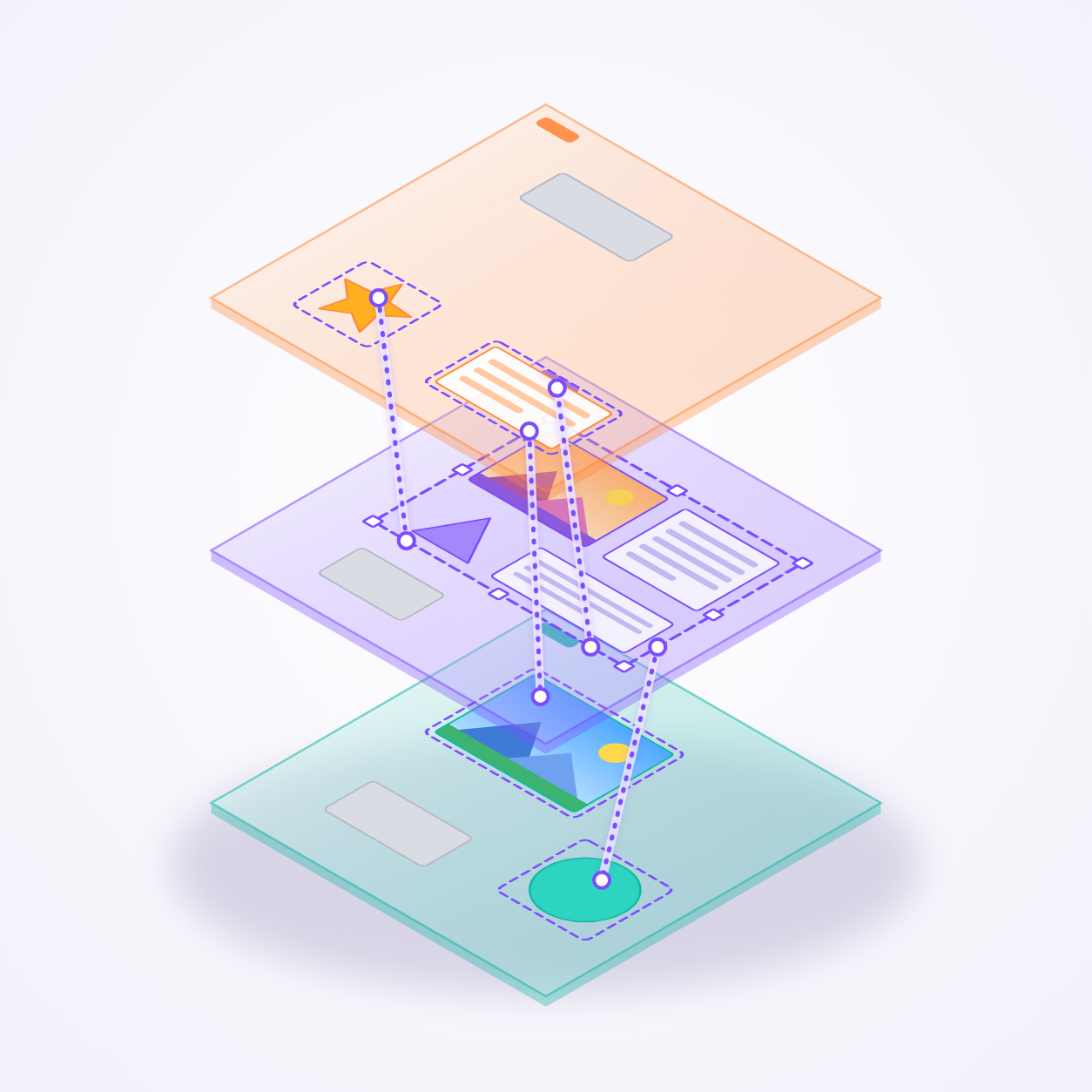
Normally everything in a group has to sit on one layer. That gets in the way when you keep prices, SKUs, die lines or production notes on their own layers, so you can hide them in one click.
SuperGroups lets you build the group as usual and mark which item belongs on which layer. It then spreads the group out across those layers, and pulls it back together into a single group whenever you want to move, copy or reuse it.
An example
A product block on a catalog page has a photo, a description, a price and a die line. You keep prices on a Prices layer and die lines on a Die lines layer, so you can hide them for a proof.
-
Select the four items and run createSuperGroup. They become one compact group you can move around as a unit. Each item remembers the layer it came from.
-
Run flipSuperGroup on the group. The price goes back to Prices, the die line to Die lines, photo and text to their own layer. Hiding the Prices layer now hides the price.
-
Need to move or copy the block? Select any one of its pieces and run flipSuperGroup again. It is one group again.
Requirements
-
Adobe® InDesign® or Adobe® Illustrator® on macOS or Windows.
-
, for installation and optional donations.
-
Our free Scripts Panels: for use with Adobe® InDesign® and Adobe® Illustrator®.
Installing SuperGroups PLVD
-
Download, install and start .
-
Click this link to fetch . Then click the Install… button, or click the … button to see all install options.
-
Click this link to fetch SuperGroups PLVD: .
Then click the Install… button, or click the … button to see all install options. -
Open the PluginInstaller Scripts Panel in Adobe® InDesign® or Adobe® Illustrator®. The scripts are in the SuperGroups folder. [CHECK] folder name as shown in OT and NT.
Alternatively, you can install this software directly from PluginInstaller. Select Available Software, then scroll through the list and/or use the Search box to locate SuperGroups PLVD.
The four scripts
-
createSuperGroup: select two or more items and run it. They become one compact group; each item’s current layer is recorded with it.
-
flipSuperGroup: the main switch. Run it on a compact super-group to spread it across its layers; run it on any piece of an expanded super-group to pull it back together. Run on two or more ordinary items, it creates a new super-group.
-
expandAllSuperGroups: expands every compact super-group in the document.
-
compactAllSuperGroups: compacts every expanded super-group in the document.
Each expand or compact is a single undo step.
Choosing the layer for each item
Each item’s target layer is a line in its Script Label (InDesign: Window > Utilities > Script Label) or its note (Illustrator: Window > Attributes):
layer: Prices
createSuperGroup writes this line for you. Edit it any time before expanding. If the layer doesn’t exist, it is created. Items without a layer: line stay on the group’s own layer. Other lines in the label or note are left alone.
To give a super-group a readable name, add superGroup: MyName to the group’s Script Label (InDesign) or use it as the group’s name (Illustrator).
Rules and limits
-
Expanded pieces must stay top-level on their layer. A piece you move into another group drops out of the super-group.
-
A super-group needs at least two items.
-
All items must be on the same spread.
-
Compacting always produces one flat group; sub-groups inside it are dissolved, and items that share a layer are regrouped on the next expand.
Free to use, donations welcome
SuperGroups PLVD is free and fully functional. If it helps your work, you can support it through PluginInstaller: find SuperGroups PLVD in Available Software and use the … menu to view donation options.
Version history
-
1.0.3: Installing with PluginInstaller
-
1.0.2: checks the selection and explains what’s wrong with odd selections; flipSuperGroup became a full toggle (it also creates super-groups); fixed a super-group whose pieces all sat on one layer; a compacted group returns to the layer it came from.
-
1.0.1: new createSuperGroup script.
-
1.0.0: first release.
Removing SuperGroups
In PluginInstaller, select SuperGroups PLVD under Installed and click Uninstall button.
Support
Email [email protected]