What is GryperLink?

GryperLink is a script for Adobe InDesign.
It can automatically assign interactive hyperlinks to InDesign text or images, based on find-and-insert pattern matching. These links are preserved when exporting to an interactive PDF.
An Example
GryperLink comes bundled with a sample document – below some screenshots using that sample document to clarify what it does.
Before:
We see some text, with product codes in blue (formatted with a character style Partnumber).
The goal is to attach hyperlinks to those product codes, so that when we export this document to PDF, the product codes can be clicked and the user’s browser will show a web page using that hyperlink.
Double-click GryperLink.jsx on the Scripts panel and you will get this:

GREP Flavors
GryperLink uses a configuration text frame on the pasteboard of the targeted document.
For the search-and-match process, it relies on GREP (Global Regular Expression Print) expressions.
These are specially coded patterns that explain what GryperLink should look for – e.g. a pattern like \d means: look for a digit (0 – 9).
There are many flavors of GREP, all slightly different.
The GREP expressions used by GryperLink are based on JavaScript GREP. For more info about JavaScript GREP, click here.
Note that the InDesign Find/Change function also supports a flavor of GREP.
InDesign GREP is different to JavaScript GREP, but the basic concept remain the same. The main differences are in the meaning of some of the ‘magical’ patterns like ~n or \S.
GryperLink Configuration
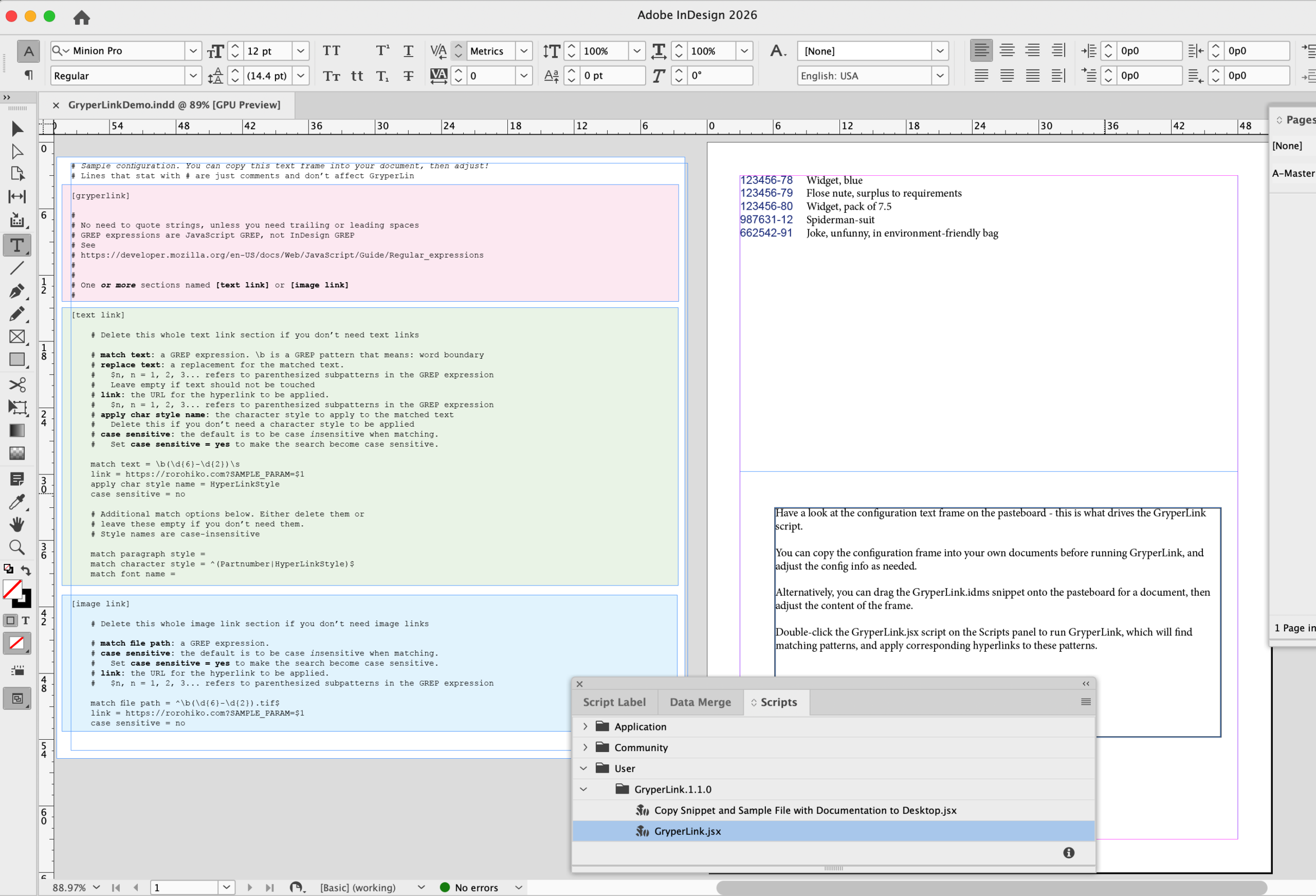
The sample document has this configuration frame on the pasteboard:

There is a lot of commenting there.
Let me remove the comments, and whittle down the frame contents to just the relevant data.
We’ll only look at the [text link] – the [image link] is treated in a similar fashion, but instead of matching on the text, we’re matching on the image file path.
[gryperlink]

[text link]
    match text = \b(\d{6}-\d{2})\s
    link = https://rorohiko.com?SAMPLE_PARAM=$1
    apply char style name = HyperLinkStyle
    case sensitive = no
    match paragraph style =
    match character style = ^(Partnumber|HyperLinkStyle)$
    match font name =

[image link]
    match file path = ^\b(\d{6}-\d{2}).tif$
    link = https://rorohiko.com?SAMPLE_PARAM=$1
    case sensitive = no
This tells GryperLink to search all text in the document, matching against a GREP expression \b(\d{6}-\d{2})\s
Taking all that apart, we can see
\d = a digit
\d{6} = six digits (0-9)
\d{2} = two digits (0-9)
\d{6}-\d{2} = some product code structured like 123456-78
(\d{6}-\d{2}) = parenthesis make this become the replacement value of the magical $1
\s = some whitespace character
\b = word boundary
All in all this means: match any text that starts at a word boundary, then six digits, a dash, two digits, and a white space character.
Each time GryperLink finds a match, it will also look at the character style. The character style needs to be either Partnumber or HyperLinkStyle
When a match is found, the hyperlink to be injected is calculated by replacing the $1 in https://rorohiko.com?SAMPLE_PARAM=$1 with whatever corresponded to \d{6}-\d{2} in the text.
If the matched text was 123456-78, then the calculated hyperlink will be https://rorohiko.com?SAMPLE_PARAM=123456-78, and this is what is assigned to the text.
Furthermore, the text will be formatted in the character style HyperLinkStyle (apply char style name).
Running GryperLink results in this:


Installing GryperLink
- Download PluginInstaller.
If you’ve not done this before, download and install the free PluginInstaller from PluginInstaller.com.
Make sure you have build #638 or higher installed (the build number is shown in the lower right-hand corner of the PluginInstaller windows). - Create an Account.
If this is your first time using PluginInstaller, you’ll need to create a new account and register it within PluginInstaller.
Make sure to check your email, and click the confirmation link in the registration email! - Add a GryperLink Bookmark.
Add a bookmark for GryperLink into PluginInstaller by clicking the following link:
Add GryperLink Bookmark into PluginInstaller
Alternatively, you can use the Browse the Store for Software window in PluginInstaller, then find and click the GryperLink product listing in the Rorohiko Catalog. - Download and Install.
Once the bookmark is listed in the Installing and Ordering window, select it and click the Download button.
After the download, choose your InDesign version from the Install Target dropdown menu and click the Install button.
Version 20.0 is InDesign 2025, Version 21.0 is InDesign 2026.
GryperLink will appear in the InDesign Scripts panel under the User section. If not, and you have multiple versions of InDesign on your computer, make sure you picked the correct Install Target.
GryperLink is now available on your InDesign Scripts Panel (Window – Utilities – Scripts):

You can double click the Copy Sample File… to copy a sample file to your Desktop, and open it in InDesign.
For your own documents, you can copy the configuration frame from this sample file onto the pasteboard of your own documents, and use it as a template/starter.
Be Safe
When using GryperLink, make sure to save the original document in a safe location before using the script!
GryperLink makes massive changes to your document, and there is no ‘undo’ – if you get the configuration wrong, you might end up with an unusable document.
If you safeguard a copy of the original, that’ll allow you to go back and try again.
It’s a good idea to compress the original into a .zip file – the odds are small that even with a wrong move you’ll actually overwrite the document inside the .zip.
Demo Version/Purchasing
GryperLink comes as a demo script: each time you run it, it will insert at most 50 hyperlinks at a time, and ask for confirmation. It is fully functional but for a large document, the process is tedious.
It’s better to upgrade to a full version. For a mere US$ 9.00 per seat, per year, GryperLink will handle an unlimited amount of links in one go.
Go to the Installing and Ordering window, select the GryperLink bookmark, and click Purchase.
Activation may take some time to process; keep an eye on the Licenses, Activations, and Pending Orders window for updates.
Configuration
You define the behavior of the script by placing a text frame with configuration data on a document’s pasteboard.
INI configuration frame
The format is pretty self-explanatory; skip ahead to ‘Description of the Options’ if you ‘grok’ things already.
Here is the detailed TL;DR information for the formatting rules:
The text frame is formatted in a format similar to the old-style Windows INI format, with some additional flexibility built-in.
The advantages of this approach is that each document can ‘carry’ its own configuration and the configuration is plain for everyone to see, in a human-readable form, rather than being hidden away on some preferences dialog.
- The information is spread over multiple paragraphs or lines.
- There are two types of relevant lines:
[SECTION]orname=value. Any lines that do not consist of either a name in square brackets or a name, an equal sign and a value are ignored. - The information within the square brackets (the
SECTION) or information to the left of the equal signs should not be edited (thename). - The
nameto the left of the=are case-insensitive and only lettersa-zand digits0-9are taken into account. Names likeabc,a B c, orA'b'care all interpreted as the same thing –abc - The information to the right of the equal signs can be freely edited
- By default, leading and trailing spaces are ignored.
someData =some Value
someData=       some Value
      someData      =        some Value
are all equivalent – they all mean
someData="some Value" - Quotes can be used to express leading or trailing spaces. Curly quotes are seen as equivalent to regular quotes.
someData = "  some Value  "
someData= “  some Value  ”
both indicate that
someData=" some Value "including the leading and trailing spaces. - Numeric values can have units and the script will auto-convert between units as needed. If the horizontal unit is
cmand the label frame width is written as1 inch, the width will automatically be interpreted as2.54 cm
Description of the options
The configuration frame contains a heading [gryperlink] section followed by one or more [text link] and/or [image link] sections. Each [... link] section represents a pattern to look for.
[text link]
Within the [text link] we can have the following info
match text
a GREP expression. The text will be scanned for this pattern
link
a URL to assign to each match. This URL can use special codes $1, $2, $3… to reference matched subexpressions of the GREP expression
apply char style name
Leave this empty if not needed. Name of a character style to apply to each matched text. The character style must exist in the document for this to work.
case sensitive
Either yes or no. If this is missing, ‘no’ is assumed. If this is ‘yes’ then the GREP expression will be matched in a case-sensitive way.
match paragraph style
Leave this empty if not needed. A GREP expression for a paragraph style name: only text formatted in this paragraph style will be matched against the GREP expression. This GREP expression is always case-insensitive.
match character style
Leave this empty if not needed. A GREP expression for a character style name: only text formatted in this character style will be matched against the GREP expression. This GREP expression is always case-insensitive.
match font name
Leave this empty if not needed. A GREP expression for a font name: only text formatted in this font will be matched against the GREP expression. This GREP expression is always case-insensitive.
[image link]
Within the [image link] we can have the following info
match file path
a GREP expression. The file path of the image will be matched against this expression.
link
a URL to assign to each match. This URL can use special codes $1, $2, $3... to reference matched subexpressions of the GREP expression
case sensitive
Either yes or no. If this is missing, ‘no’ is assumed. If this is ‘yes’ then the GREP expression will be matched in a case-sensitive way.
Version history
Version 1.1.0: December 14, 2025
– Fixes an issue with InDesign 2026 where GryperLink could not create multiple identical hyperlinks within a single doc.
– This version was backported from UXPScript back to ExtendScript, to make the installation process less cumbersome.
Version 1.0.9: December 6, 2024
– This is a much-enhanced rewrite in UXP Script of an older GryperLink script that was originally written in ExtendScript.