What does MagnetoGuides do?
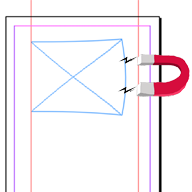
Simple answer: MagnetoGuides turns your InDesign guides into “magnetic” guides that automatically move and resize multiple objects when you adjust the guides.
Instead of manually repositioning dozens of elements when you need to adjust a layout, MagnetoGuides lets you move just the guides and everything else follows automatically.
Stop the layout shuffle
The old way: When you need to adjust a structured layout (like a form), you typically:
- Move one guide
- Manually select and reposition every affected text box
- Manually resize elements that need to stretch
- Repeat for every other guide that needs adjustment
- Spend ages keeping everything properly aligned
- Risk inconsistent spacing and sizing
The new way: Move a magnetic guide and all connected elements automatically move, resize, and stay perfectly aligned.
Perfect for structured documents
- Forms design – Registration forms, applications, surveys, order forms
- Templates – Business cards, invoices, certificates, badges
- Data sheets – Product specs, price lists, catalog pages
- Newsletters – Consistent column layouts and spacing
- Brochures – Structured layouts with multiple sections
- Tables and grids – Any layout with repetitive, aligned elements
Online demo:
How magnetic guides work
Basic concept
- Snap objects to guides – Position your text boxes, images, and other elements against regular InDesign guides
- Make guides magnetic – Use MagnetoGuides to “magnetize” those guides
- Move guides – When you move a magnetic guide, all snapped objects move with it
- Automatic stretching – Objects snapped to multiple guides resize automatically to stay connected
Two types of behavior
Single-side connection:
- Object touches one magnetic guide
- Object moves along when the guide moves
- Object keeps its original size
Multi-side connection:
- Object touches multiple magnetic guides
- Object stretches or shrinks to stay connected to all guides
- Perfect for text boxes that need to expand/contract
Real-world examples
Form design scenario
You’re designing a registration form with 20 text fields. After client review, they want all fields 10mm wider and the sections spaced differently.
Without MagnetoGuides: Manually select and resize 20 text boxes, then reposition section headers, then adjust spacing guides, checking alignment constantly.
With MagnetoGuides: Move two guides and watch all 20 fields resize automatically while maintaining perfect alignment and spacing.
Template adjustment
Your business card template needs to accommodate longer company names in various languages.
Without MagnetoGuides: Manually adjust text box widths, reposition logos, move contact information, realign everything.
With MagnetoGuides: Drag one guide and everything reorganizes itself proportionally.
Advanced guide linking
Rigid links
- Connect two guides with a fixed distance
- When one moves, the other maintains exact spacing
- Perfect for maintaining consistent margins
Stretchy links
- Connect three or more guides proportionally
- Moving one guide stretches/compresses the whole arrangement
- Maintains relative spacing while allowing overall size changes
System requirements
- InDesign 2024 or newer (for older versions, use legacy MagnetoGuides)
- Windows or Mac
- APID ToolAssistant (free supporting plugin)
- PluginInstaller (free tool for installation and licensing)
Pricing
- 20-day free trial – Full functionality, no restrictions
- $29 per computer per year (excluding tax)
- Annual renewal required
- Purchase through PluginInstaller
Installation (current manual process)
Step 1: Download required files
- MagnetoGuides
https://www.rorohiko.com/downloads/MagnetoGuides.1.0.9.zip - PluginInstaller
https://PluginInstaller.com - APID ToolAssistant
Pick the correct link, depending on your computer and version of InDesign:- Mac, InDesign 2025
https://www.rorohiko.com/downloads/apid/APIDToolAssistant_Mac_2025.1.0.78.zip - Mac, InDesign 2026
https://www.rorohiko.com/downloads/apid/APIDToolAssistant_Mac_2026.1.0.78.zip - Windows, InDesign 2025
https://www.rorohiko.com/downloads/apid/APIDToolAssistant_Win_2025.1.0.78.zip - Windows, InDesign 2026
https://www.rorohiko.com/downloads/apid/APIDToolAssistant_Win_2026.1.0.78.zip
- Mac, InDesign 2025
Step 2: Install PluginInstaller
In case you had not already installed it before:
- Download PluginInstaller (free tool for script management)
- Extract and place in convenient location (Applications, Desktop, etc.)
- Run PluginInstaller – it configures itself automatically
- If you don’t have an account yet, create one. WRITE DOWN YOUR UNLOCK CODE.
- After relaunching PluginInstaller, always check the Accounts window and verify your account is unlocked! If it is not, nothing will work.
Step 3: Install APID ToolAssistant
- Close InDesign completely
- Find your InDesign Plug-Ins folder (usually in the InDesign application folder)
- Create a Rorohiko subfolder inside Plug-Ins
- Extract APID ToolAssistant files to the Rorohiko folder
Step 4: Install MagnetoGuides
- Extract the MagnetoGuides download
- Copy contents to the same Rorohiko folder
- Restart InDesign
Below some screenshots similar to how the Rorohiko folder should look:


Step 4: Purchase license (after trial)
- Open PluginInstaller
- Use the Store window in PluginInstaller, browse the catalog and find MagnetoGuides. Click the link in the Store window to add the bookmark into the Installing and Ordering window.
- Purchase license for $29/year
- Activation happens automatically
Getting started workflow
Step 1: Create your layout normally
- Place text boxes, images, and other elements
- Use regular InDesign guides to align everything
- Make sure objects “snap” to the guides you want to magnetize
Step 2: Magnetize your guides
- Select the guides you want to make magnetic
- Use MagnetoGuides to convert them to magnetic guides
- Set up any guide linking (rigid or stretchy)
Step 3: Test the magic
- Move a magnetic guide
- Watch connected objects move and resize automatically
- Adjust guide links if needed
Best practices
Start simple: Begin with just a few magnetic guides to understand how they work before creating complex linked arrangements.
Plan your guide structure: Think about which elements should move together and which should resize when guides move.
Use guide linking wisely: Rigid links for fixed relationships, stretchy links for proportional adjustments.
Test thoroughly: Try various guide movements to ensure your layout behaves as expected.
Who should use MagnetoGuides
- Forms designers – Anyone creating registration forms, applications, or surveys
- Template creators – Business card, invoice, and certificate designers
- Publication designers – Newsletter and brochure layouts with consistent structure
- Corporate designers – Branded materials requiring precise, consistent layouts
- Production teams – Anyone making frequent layout adjustments to structured documents
- Freelancers – Designers who need to quickly adapt layouts for different clients
Troubleshooting
Objects not moving with guides? Make sure objects are properly snapped to magnetic guides before magnetizing them.
Unexpected stretching behavior? Check if objects are touching multiple magnetic guides – they’ll resize to stay connected to all of them.
Guides not linking properly? Ensure you’re following the correct procedure for rigid vs. stretchy links.
Ready to make layout adjustments effortless? Download the files above and start your free 20-day trial today!